Google Chat Integration
Get browser report alerts delivered directly to your Google Chat spaces for instant team visibility.
When a browser report arrives, reporting-api.app sends a message to your Google Chat space with the key details and a link to the full report. Your team stays informed about security violations, deprecations, and browser interventions without leaving Chat.
Prerequisites
- A Google Workspace Business or Enterprise account with Google Chat
- Permission to add webhooks to Chat spaces (your Workspace admin controls this)
- A reporting-api.app application with reports flowing (see Getting Started)
Setup
Step 1: Create a Webhook in Google Chat
- Open Google Chat in your browser
- Go to the space where you want to receive alerts
- Click the space name at the top, then select Apps & integrations
- Click Add webhooks
- Enter a name (e.g., "Browser Reports") and click Save
- Copy the webhook URL
Step 2: Add the Integration in reporting-api.app
- Go to your application settings and scroll to Integrations
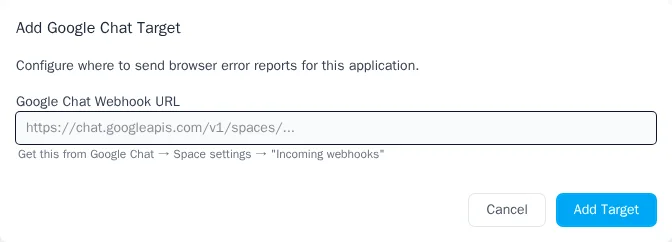
- Click Add Google Chat
- Paste your webhook URL
- Save and ensure the integration is enabled
What You'll See
Each report appears as a card in your Chat space showing:
- The report type (e.g., "CSP Violation", "Deprecation Warning")
- Your app name and environment
- Key details about what happened
- A "View Report" button linking to the full details
The specific fields shown depend on the report type. For example, CSP violations show the blocked URL and violated directive, while deprecation warnings show the feature ID and message.
Best Practices
Use a Dedicated Space
Create a separate Chat space for alerts rather than using a general team channel. This keeps alerts organized and prevents them from getting lost in conversation.
Avoid Alert Fatigue
Enable Google Chat alerts selectively:
- Production apps where security issues need quick attention
- Critical services like payment or authentication flows
- New deployments to catch issues during rollout
For development environments, checking the reporting-api.app dashboard is usually enough.
Combine with Other Integrations
Use Google Chat for team awareness alongside AppSignal for error tracking or Webhooks for custom automation.
Troubleshooting
Messages Not Appearing
- Check that the integration is enabled in your app settings
- Verify the webhook URL was copied completely
- Confirm reports are flowing in your reporting-api.app dashboard
- Check that the webhook still exists in your Chat space (admins can remove them)
Messages Delayed
Google Chat limits webhooks to 1 message per second. During high-volume periods, messages may be queued. Failed deliveries are retried automatically.
Next Steps
- AppSignal Integration — Error tracking and analysis
- Webhooks Integration — Custom HTTP endpoints
- Getting Started — Set up your first application
Resources
- Google Workspace Admin Help — Managing webhooks for your organization