Integrations
Route your browser reports to the tools your team already uses.
reporting-api.app captures browser reports and sends them to your preferred notification targets. Configure one or more integrations per application to ensure your team sees critical issues in their existing workflows.
Available Integrations
AppSignal
Centralized error tracking alongside your backend errors. Perfect for teams already using AppSignal.
Webhooks
Send reports to any HTTP endpoint. Ideal for custom data pipelines, SIEM systems, or your own backend.
Google Chat
Real-time alerts in your team's Google Chat spaces. Great for immediate awareness of critical issues.
How Integrations Work
When a browser sends a report to your application's reporting endpoint, here's what happens:
-
Report arrives — The browser sends the report to your unique endpoint URL (configured via
the
Reporting-EndpointsHTTP header) - Validation and storage — We validate the report origin against your allowed origins list, then store the report in your application's history
- Format and dispatch — For each enabled integration, we format the report appropriately (JSON for webhooks, error format for AppSignal, card format for Google Chat) and send it to your configured endpoint
- Retry on failure — If delivery fails due to a transient error (network issues, rate limits, or server errors), we automatically retry with exponential backoff
Integrations distinguish between transient errors (429 rate limits, 5xx server errors, network timeouts) which are retried automatically, and permanent errors (4xx client errors like invalid credentials) which fail immediately. This ensures reliable delivery without wasting resources on unrecoverable failures.
Notification Targets
Each application in reporting-api.app can have multiple notification targets. A notification target is a configured destination for your browser reports—an AppSignal API key, a webhook URL, or a Google Chat space.
Key features of notification targets:
- Multiple targets per app — Send the same reports to AppSignal for error tracking AND Google Chat for team awareness simultaneously
- Enable/disable without deletion — Temporarily disable an integration without losing your configuration. Perfect for maintenance windows or debugging
- Per-environment routing — Configure different targets for production vs staging applications to reduce noise in your alerting channels
- Encrypted credentials — API keys and webhook secrets are encrypted at rest and never exposed in logs or the UI after saving
Configuring Integrations
Integrations are configured in your application's settings. Here's how to add a new integration:
Step 1: Navigate to Application Settings
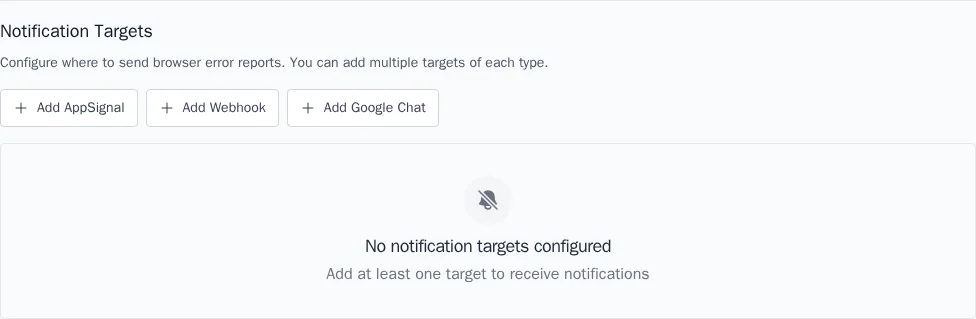
From your application's dashboard, click Settings (or the gear icon) to open the application settings page. Scroll down to the Notification Targets section.
Step 2: Add an Integration
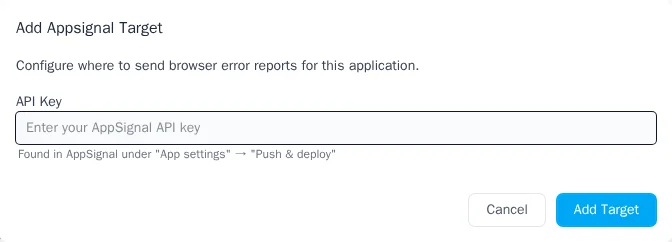
Click one of the Add [Integration Type] buttons to open the configuration modal. Each integration type has different configuration options:
- AppSignal — Requires your Front-end error monitoring API key
- Webhooks — Requires the endpoint URL; optionally add an authorization header
- Google Chat — Requires the webhook URL from your Google Chat space
Step 3: Enable the Integration
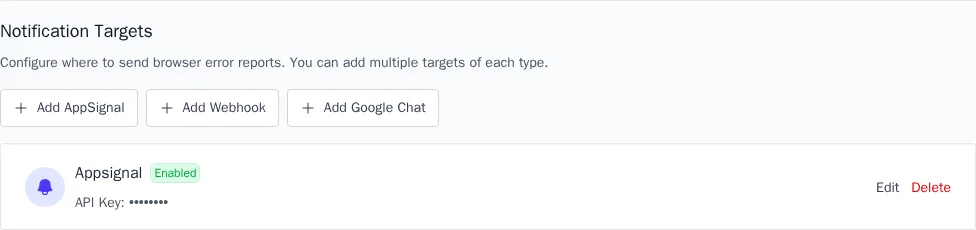
After saving, ensure the integration is enabled (the toggle should be on). You can enable or disable integrations at any time without losing your configuration.
Choosing an Integration
Different integrations serve different purposes. Here's when to use each:
| Integration | Best For | Key Benefit |
|---|---|---|
| AppSignal | Teams already using AppSignal for backend monitoring | Unified frontend + backend error view |
| Webhooks | Custom processing, SIEM integration, compliance logging | Full flexibility with raw report data |
| Google Chat | Team awareness, on-call alerting, quick triage | Immediate visibility without leaving chat |
You can—and often should—use multiple integrations together. A common pattern is to send reports to AppSignal for tracking and investigation, while also sending critical report types (like CSP violations) to Google Chat for immediate team awareness.
Next Steps
Choose an integration to get started:
- AppSignal Integration — Centralized error tracking
- Webhooks Integration — Custom HTTP endpoints
- Google Chat Integration — Team notifications
Or, if you haven't set up your first application yet, start with the Getting Started guide.